

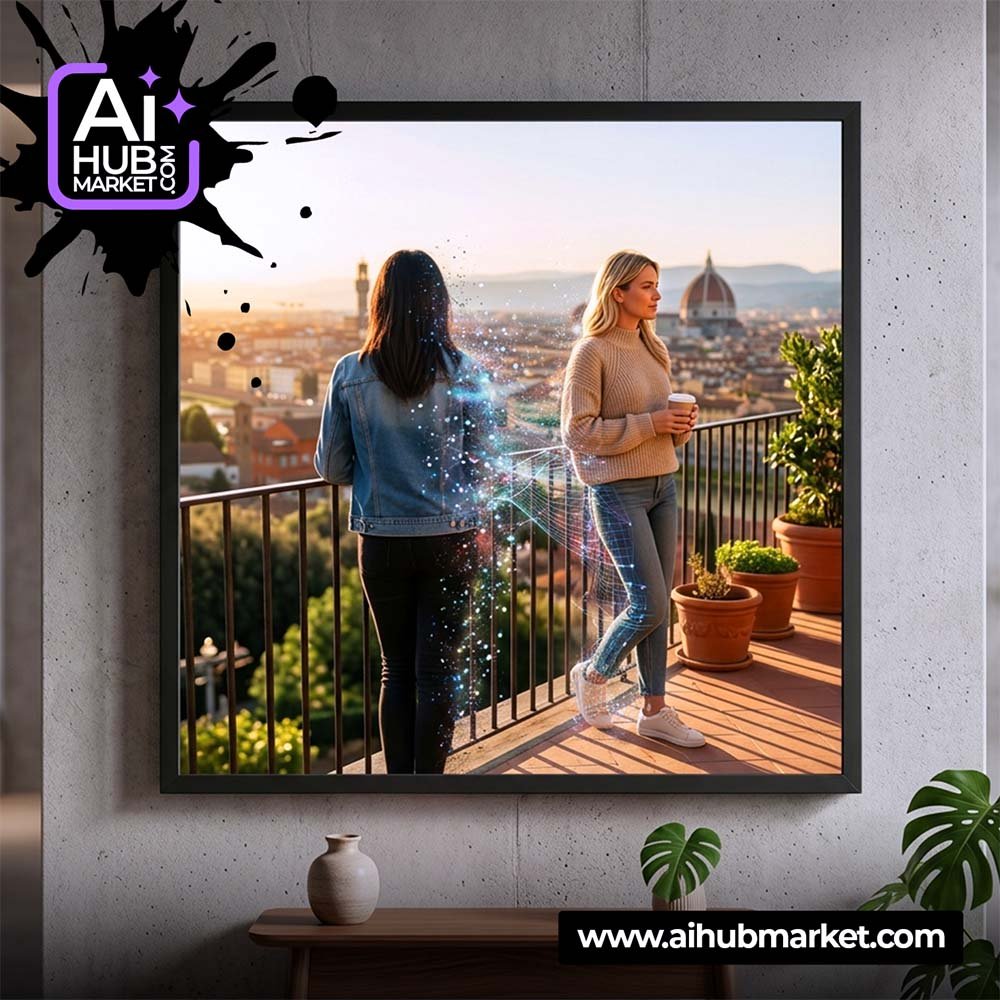
Replacing a person in a photo with AI is easiest when you separate the task into two parts: preserve the original scene, then define the new person or character. The more clearly you describe what must stay unchanged — camera angle, pose, lighting, background, shadows, and composition — the less likely the AI is to redesign the entire image.
How to Replace a Person in a Photo with AI
- Choose a clean source image. The original person, pose, environment, and lighting should be easy to read.
- Define what must remain unchanged. Tell the model to preserve the background, framing, camera position, perspective, and major objects.
- Describe the replacement. Specify age range, clothing, hairstyle, body position, expression, and other non-sensitive visual traits relevant to the scene.
- Match the original lighting. Ask for the same light direction, color temperature, shadow softness, and exposure.
- Preserve body geometry. The new person should occupy the same physical space and interact naturally with furniture, props, or other people.
- Generate alternatives and inspect them. Check hands, face, edges, reflections, shadows, scale, and background continuity.
AI Person Replacement Prompt Structure
A useful prompt can follow this order:
Use the uploaded image as the base composition. Replace the person at [location in frame] with [description]. Preserve the original background, camera angle, crop, body position, perspective, lighting direction, shadow placement, and surrounding objects. Make the replacement physically consistent with the scene. Keep natural skin texture and realistic clothing detail. Do not alter [important objects]. Avoid duplicated limbs, warped hands, inconsistent shadows, text, or watermarks.
If the tool supports masking or inpainting, isolate the person rather than asking the model to regenerate the full frame. That usually gives better scene consistency.
How to Match the Original Scene
The replacement looks believable when the new subject inherits the visual logic of the original photo.
- Perspective: match eye level and camera distance.
- Scale: keep the person proportional to doors, furniture, vehicles, and other people.
- Light: match key-light direction and shadow density.
- Color: preserve the scene’s white balance and contrast.
- Contact points: feet, hands, chairs, floors, and props should connect naturally.
- Depth of field: if the background is blurred, the replacement should have the same focus logic.
Replacing a Person with a Specific Identity
If you are using a second reference image for the replacement person, choose a clear photo with visible facial features. Ask the AI to preserve recognizable facial proportions while adapting pose, lighting, and expression to the destination scene. Some tools preserve identity better than others, so compare several outputs rather than assuming the first image is accurate.
For related workflows, see How to Use a Photo as an AI Reference and How to Preserve a Face in AI Images.
Quality-Control Checklist
- The replacement person has the correct scale and perspective.
- Hands, fingers, facial features, and clothing are anatomically plausible.
- Shadows point in the same direction as the original scene.
- Reflections in mirrors, glass, or glossy surfaces are consistent.
- Background objects have not changed unexpectedly.
- No extra people, limbs, accessories, text, or watermarks appeared.
- The result does not falsely represent a real event or person in a misleading context.
Responsible Use
Use images you have permission to edit and be careful when generating realistic depictions of identifiable people. For marketing, editorial, or public-facing use, avoid creating misleading representations or implying that a real person participated in an event, endorsement, or situation that did not occur.
Frequently Asked Questions
What is the easiest way to replace a person in an image with AI?
Use an AI editor that supports image references and, ideally, masking or inpainting. Preserve the original composition and edit only the person’s area when possible.
How do I keep the background unchanged?
Explicitly tell the model to preserve the background, camera angle, crop, perspective, and objects. Masking the person’s region is more reliable than regenerating the entire image.
Can AI replace a person while keeping the same pose?
Yes, but pose preservation varies by tool. Describe the pose and contact points clearly and use the source image as the base rather than only as loose inspiration.
Can I use my own photo as the replacement reference?
Yes, when the AI tool supports multiple image references. Use a clear face reference and instruct the model to adapt identity to the destination scene’s pose and lighting.
Explore more ready-to-use visual workflows in the AIHubMarket prompt marketplace or use AIHub Pro for broader premium prompt access.